Printing to a Nelko P21 from a Mac Without the Official App
I have a Nelko P21, one of those small Bluetooth thermal label printers. For a while I could design and print labels from the Nelko app on my Mac, which is much nicer than typing on a phone. Sometime after February 2026 that stopped working: the Mac app pushed me to use my phone instead, and it force-updates, so I couldn't just stay on an older build.
I started by trying to get the old app back. By the end, I had a Python printing tool, a wine-label template, and 100 bottles at home labeled with their individual CellarTracker barcodes. Getting the first label out was only part of the work: making batches recoverable without printing duplicates took a little more care.
The Mac app is a different program
My first assumption was that I'd been running the iPhone app on Apple Silicon, and that the developer had turned that off. That turned out to be only half the story. The App Store page lists one app for iPhone and Mac, but Apple's lookup API returns a separate Mac build for the same app ID (1659386800): bundle ID com.nelko.printer, version 1.8.2, requiring macOS 10.15 — a completely different version line from the iPhone app's 4.x.
So the thing to roll back was the Mac build, not the iPhone IPA.
Downgrading a Mac App Store app with ipatool
ipatool is usually used to download iOS IPAs, but it accepts a --platform macos flag, and that worked for listing every Mac version of the app:
brew install ipatool
ipatool auth login -e <apple-id>
ipatool list-versions -i 1659386800 --platform macos
The external version IDs come back in release order, oldest first. Resolving each one gives the display version and release date:
ipatool get-version-metadata -i 1659386800 --platform macos \
  --external-version-id 881523085
# displayVersion=1.3.0 releaseDate=2026-01-26
1.3.0 from late January was the last one before things changed, so I downloaded it:
ipatool download -i 1659386800 --platform macos \
  --external-version-id 881523085 -o nelko_mac_old.pkg
For Mac apps the download is a .pkg, not an .ipa. Before running sudo installer -pkg ... -target /, I checked where it actually installs. -target / picks the volume, not the folder, but I'd rather confirm than trust it:
pkgutil --payload-files nelko_mac_old.pkg | head
pkgutil --expand nelko_mac_old.pkg /tmp/nelko_x
grep -r "install-location" /tmp/nelko_x
The downgrade worked and the old app opened. But I still couldn't find any way to connect it to the printer or print anything. After all that, it was a dead end.
The printer protocol is already documented
At that point it was easier to skip the app. Someone had already done the hard part: merlinschumacher/nelko-p21-print captured the Bluetooth traffic, and kennedn/nelko-p21 built a CLI on top of it. Their findings:
- The P21 uses Bluetooth Classic SPP (RFCOMM), a serial port over Bluetooth, not BLE.
- It speaks a small subset of TSPL2, the text command language used by many label printers. Command lines end with CRLF; the bitmap payload is raw binary.
- A roll has an NFC tag the printer reads, so you can ask it for the label size (
ESC ! o), its status (ESC ! ?), and its battery (BATTERY?). - The print head is 96 dots wide (12 mm at 203 DPI). An image is sent as a raw 1-bit bitmap, MSB first, where a 0 bit prints black.
A print job is just this:
SIZE 14 mm,40 mm
GAP 5 mm,0 mm
DIRECTION 1,1
DENSITY 15
CLS
BITMAP 0,0,12,320,1,<3840 bytes of bitmap>
PRINT 1
For a 14×40 mm label that is 12 bytes per row times 320 rows.
Making it work on macOS
The existing projects gave me the protocol, but I still needed a macOS transport. My first version tried two paths:
- A serial port. If macOS exposes the paired printer as
/dev/cu.*P21*, use it with pyserial. - IOBluetooth. Find the paired device through Apple's IOBluetooth framework via PyObjC, look up its SPP channel from the cached SDP records, and open an RFCOMM channel directly. My implementation falls back to channel 1 if it cannot find one. Writes are split into MTU-sized chunks. Replies arrive through a delegate callback, so the script services the run loop while waiting for data.
On my Mac, the serial device existed and could be opened, but it returned no useful status data. Direct IOBluetooth eventually worked. I added --native to bypass the serial path, and used that for the actual label batches.
The Python environment needs pillow, pyserial, and pyobjc-framework-IOBluetooth. My local setup.sh creates a virtual environment, and a small p21 wrapper invokes the script with it. The commands below refer to my own scripts; the upstream projects have different interfaces.
./p21 --preview --text "咖啡豆\n2026-10"
./p21 --native --status
./p21 --native --text "厨房 · 香料"
./p21 --native --image logo.png --copies 1
For general text, the renderer uses a macOS font such as PingFang, shrinks the text until it fits, and rotates the landscape canvas into the printer's orientation. General images get autocontrast and optional dithering. The wine-label generator uses a separate layout and produces a finished black-and-white PNG.
A blue light was not enough
At one point the printer had a steady blue light and still would not print. Opening the serial port was no proof of a working connection either. What finally mattered was getting an actual reply from the printer.
The useful sequence on my setup was:
- Quit other apps that might be using the P21, and pair it in macOS Bluetooth settings.
- Allow Bluetooth access for the process making the connection when macOS asks. Permissions initially blocked my direct connection.
- Use
./p21 --native --statusand look for both a valid ready status and a readable paper size. - If the connection appears stale, close the connection to this P21 and reconnect. I did not need to remove pairing or reset Bluetooth for the whole Mac.
Powering the printer off and back on is another way to clear a stuck connection. A light changing color was useful feedback while troubleshooting, but I stopped treating it as confirmation that the RFCOMM channel could exchange data.
The distinction matters after sending a label, too. Twice, a label was physically printed even though my immediate status check failed. A subsequent connection reported ready. Automatically resending on that timeout would have produced a duplicate.
Three different label widths
My roll is sold as 15 × 40 mm. The printer reported 14 × 40 mm, with a 5 mm gap. The usable print-head width in this implementation is 96 dots, or about 12 mm at 203 DPI. These describe different things: the stock, the roll's reported dimensions, and the printable width.
The image I generate is a landscape 320 × 96 canvas. Before sending, it becomes a 96 × 320 portrait bitmap: 12 bytes per row, 320 rows, 3,840 bytes total. Designing a 15 mm-wide bitmap and assuming the entire width would print would clip content.
I kept everything in the 96-dot strip. The first line has the vintage at the left, the producer centered on the entire label, and my Codehan signature at the right. The second line has the wine name and bottle size, also centered. The lower portion holds the barcode and its readable number.
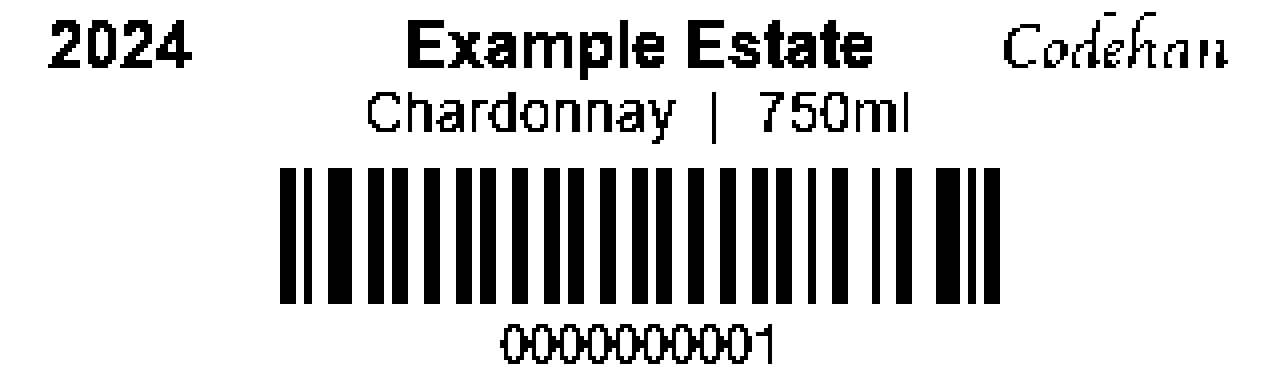
The sample above uses fictional wine details and a placeholder bottle number. The file sent to the printer is the original 320 × 96 image, not this enlarged preview.
Centering the producer needed a separate decision. Centering it in the space left between the year and signature made it look off-center, because those two corners have different widths. I instead center the producer on the whole label and shrink its font until it clears both corners. Long wine names shrink or wrap onto two centered lines. Text that still cannot fit produces an error rather than silently losing part of the name.
Barcodes need their own rendering path
CellarTracker assigns a barcode to each individual bottle. Two bottles of the same wine need two labels with different numbers. I used those ten-digit numbers as strings, including their leading zeros, and encoded them with Code 128 Set C, which packs two digits into each symbol.
On the 320-dot canvas, the barcode has a two-dot narrow module and 70 dots of quiet space on either side. The resulting bars line up with the printer's pixels. I check the encoding, checksum, and bar geometry in tests, along with the text layout.
A barcode should not go through the same image treatment as a photograph. My generator writes a 1-bit PNG at the final print dimensions. I print that original with --no-dither, keeping the bar widths intact instead of introducing a halftone pattern. Enlarged previews are for inspection only.
The generator is independent of Bluetooth, so it can render a whole batch for review before anything touches the printer:
{
  "vintage": "2024",
  "producer": "Example Estate",
  "wine": "Chardonnay",
  "size": "750ml",
  "barcode": "0000000001",
  "signature": "Codehan"
}
# The sample number is illustrative; real labels use a bottle's actual CT ID.
./wine-label --from-json bottle.json \
  --output labels/0000000001.png --preview

./p21 --native --image labels/0000000001.png --no-dither
The PNG also contains the bottle ID as metadata. Renaming a generated image does not erase its identity. If its metadata, numeric filename, and an explicitly supplied barcode disagree, the printing tool stops rather than recording the wrong bottle.
The print journal became part of the tool
Once I had printed labels for the fridge, I moved on to the room and cellar. Some bottles had changed location between batches. That made a list of filenames in each batch insufficient: a bottle could turn up again under a different location even though it already had a label.
I built a shared SQLite journal keyed by bottle barcode, plus a readable JSON snapshot. Old batch logs could be imported repeatedly without creating duplicate events. Generating a PNG or a preview does not count as printing it.
The journal distinguishes these states:
| State | What I know | Default behavior |
|---|---|---|
reserved | A process has claimed this bottle before printer I/O | Skip another attempt |
uncertain | A send may have started; the physical result is unverified | Stop and check before a reprint |
sent | The job was sent and the printer subsequently reported ready | Skip |
confirmed | I confirmed the label actually printed or was attached | Skip |
not_sent | The attempt failed before sending the print job | Allow a retry |
The reservation uses a database transaction, so two processes cannot both claim the same bottle at once. Immediately before writing print bytes, the journal records an uncertain outcome. If the process crashes halfway through the write, the next run will therefore skip that bottle instead of assuming nothing happened.
A successful send still does not prove that a label is readable, or that I put it on the right bottle. Human confirmation is a separate event. A failed connection before sending is safe to retry; a failed status check after sending needs inspection. I do not attempt to infer physical output from a generic command failure.
For deliberate replacements, I added --reprint. It records another attempt without erasing the original history. An active reservation still blocks a concurrent reprint. Failed reprints that never reach the printer preserve the bottle's previous printed state.
./label-history
./label-history check 0000000001

# Plan a batch without connecting to Bluetooth.
./print-labels batches/example/manifest.json --dry-run

# A deliberate replacement for one damaged label.
./p21 --native --image labels/0000000001.png --no-dither --reprint
The database, JSON snapshot, and manual confirmations live in data/; each batch retains its manifest, images, and log. Keeping those together gives me an archive I can back up and inspect later. The checks cover repeated imports, two bottles of the same wine, concurrent claims, partial-send failures, and skipping a known bottle before opening Bluetooth.
What worked for the batches
For the larger batches I kept one native connection open, validated the roll and every image, and sent one label at a time. After each write I allowed about 2.7 seconds for the physical print, then polled for ready with a bounded timeout. That timing worked with my 40 mm stock; it is an observation from this setup, not a universal printer setting.
The batch stopped on an error. It could repeat a status query, but it would not automatically repeat a print job whose outcome was uncertain. Every bottle still went through the same journal before sending.
The location check and deduplication paid off on the cellar batch: CellarTracker listed 31 bottles, but four had already been labeled during the fridge batch. The journal skipped those and sent 27 new labels. Sake worked with the same template and separate bottle IDs; the two Noguchi 01 bottles could both be labeled even though they share a wine entry.
At the end I confirmed that all 100 bottles at home were labeled, and marked those IDs as confirmed in the archive. Moving one of those bottles between the fridge, room, and cellar now requires no new label: the location belongs in the inventory system, while the sticker identifies the bottle.
I went into this expecting to recover an older version of an app. The useful result was a printing workflow I could inspect: render the label, verify its bottle ID, reserve it, send once, and keep the result even when the Bluetooth connection is inconclusive.